
- Home
- Products
- Sound Tech and PA
- Sound Tech Course
- Free Tech Resources
- Free Sound Tech Lessons
- Playing By Ear
- Play By Ear Course
- Ear Training & Music Theory Resources
- Worship Leading
- Worship Leading Course
- Free Worship Leader Training
- Free Worship Leader Resources
- Band Skills Course
- Free Worship Team Training
- Free Worship Team Resources
- Subscription
- Blog
- Contact
- About
- Search
Free worship rota planning tool

We first published this post a couple of years ago but we’ve a lot more subscribers now so worth a second posting. I’ve been using this application for all sorts of rotas and scheduling meetings and its saved loads of time so have a read through to see how it can take some of your admin load.
The first problem with organising a rota is to know who is available for each time slot. Once upon a time you would call each person one at a time and ask if they can or cannot do each slot. These days you send out some emails, and get a few less back. The next task is to arrange the replies into a table of who’s available when.
In this article we’ll see how you can get Google to do a lot of this work for you.
Everything described here is completely free.
You will need a Google Account. No-one else will need a Google Account. This does not mean that you need to switch to Google mail, nor even acquire a Google email address. You can use the UserID and Password of your Google Account to access your secure Google Documents, Google Calendar, Google Photos, Google Feed Reader, and more. However, we’ll just be using Google Documents.
So, step by step, here we go…
Create a Google Account
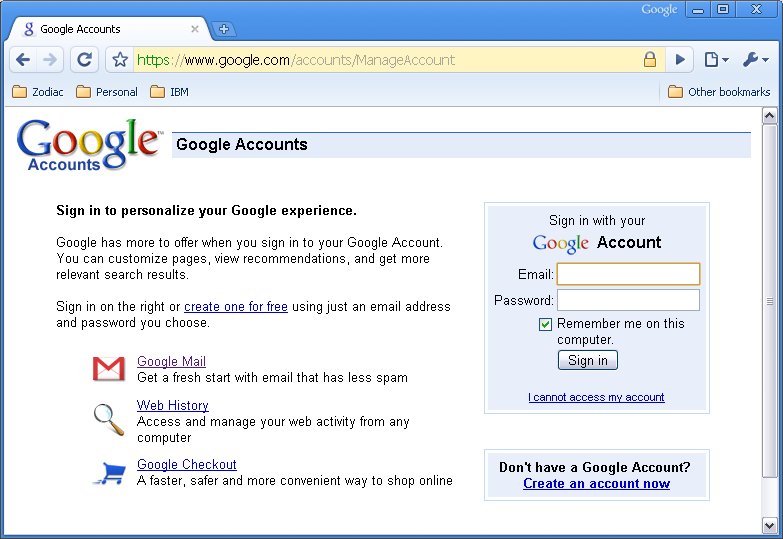
Go to http://www.google.com/accounts and either log in, or create a new account.
Step 1: Open Google Documents
This is a web application that allows you create a presentation, a document, or a spreadsheet which is stored in the internet and accessed from your browser (Internet Explorer, Firefox, or Google Chrome as in these examples. You can find Google documents at http://docs.google.com You now get a list of files like this one:

This panel allows you to review your existing files if you have any, and to create a new Spreadsheet. The wonderful thing about Google spreadsheets is that you can share them with others. Normally you would attach a file to an email, but in this case we avoid creating a second copy, because several people can edit a Google spreadsheet at the same time from their browsers.
Step 2: Create a New Google Spreadsheet
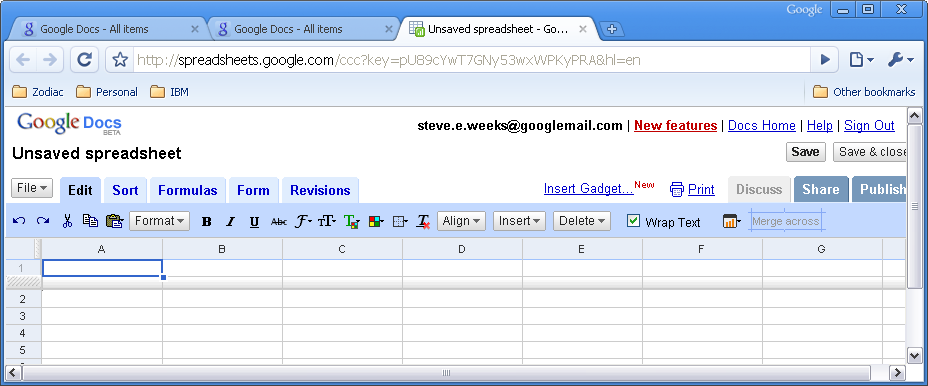
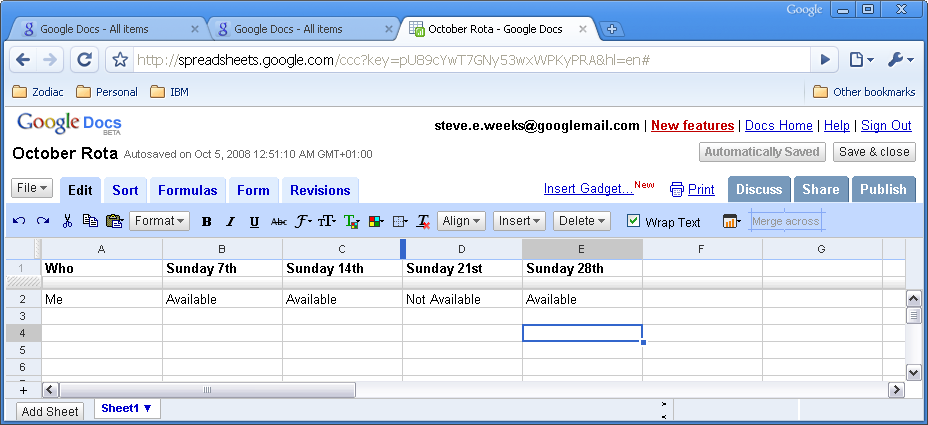
Your new spreadsheet is empty of course, and you’ll set it up as you would normally if you needed to work out who is going to do which time slots. So, if you’re planning who is going to play in the church band, you’ll put the dates across the top of row 1, and create a row for each person, starting with your self.
Now in the example below, the headings are set up in row 1, and the file has been saved as “October Rota”. Remember, it is not saved on your computer, but in the internet. The bad news is that you can’t see this file unless you are “on-line” but the good news is that you can see it on any computer in the world without creating any copies. Of course you can spoil this elegance at will; just download the file and start mailing it around!
Step 3: Create a New Google Spreadsheet
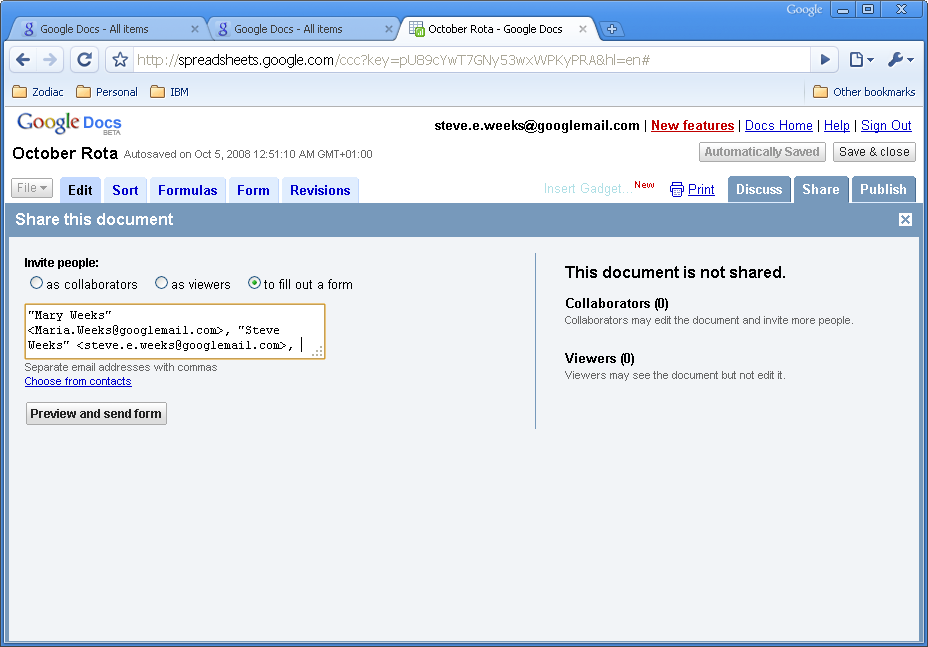
The really exciting stuff happens next. We can share the file with others who will be able to see and edit the same file. So let’s hit the “Share” tab. We’ll get a chance to nominate people who can either view, collaborate (view and edit), or in the third interesting case, fill out a form.
Step 4: Design a Form for the Shared Spreadsheet
You can edit each field to accept free form text, or multiple choices as follows:
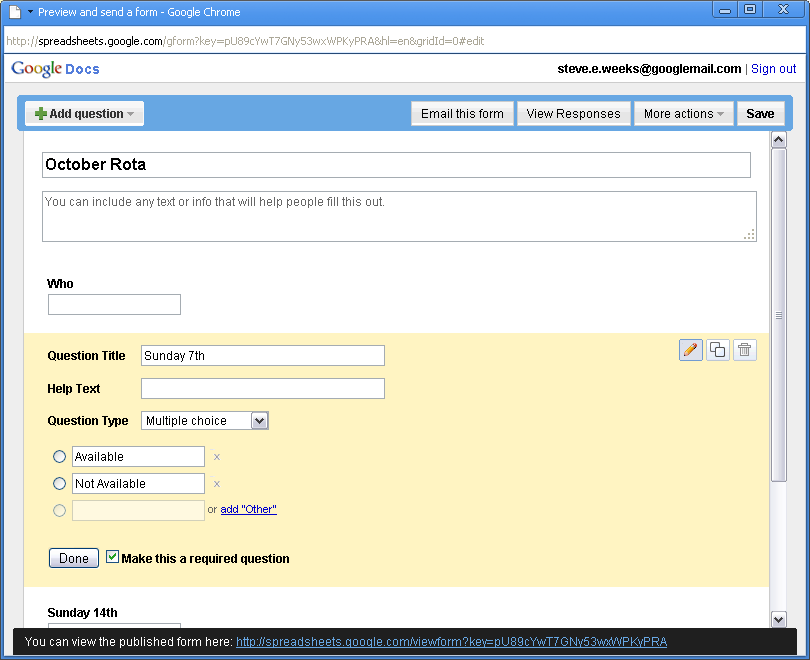
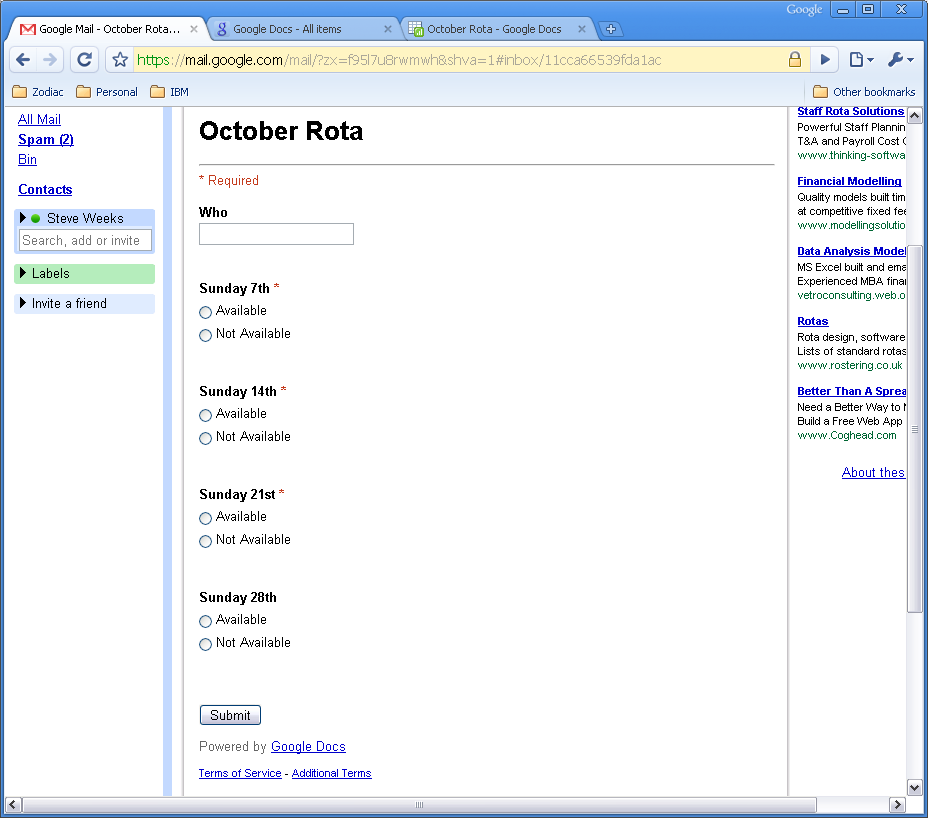
When you have finished, you can mail the form to everyone. They will receive an email like the one below, in which they can click on the choices and press the submit button.
Anyone who wanted to see the spreadsheet and edit the cells would need a Google account, but this method works for anyone who can receive an email.
As soon as the choices are made, the results appear in the spreadsheet. You can see the results immediately.
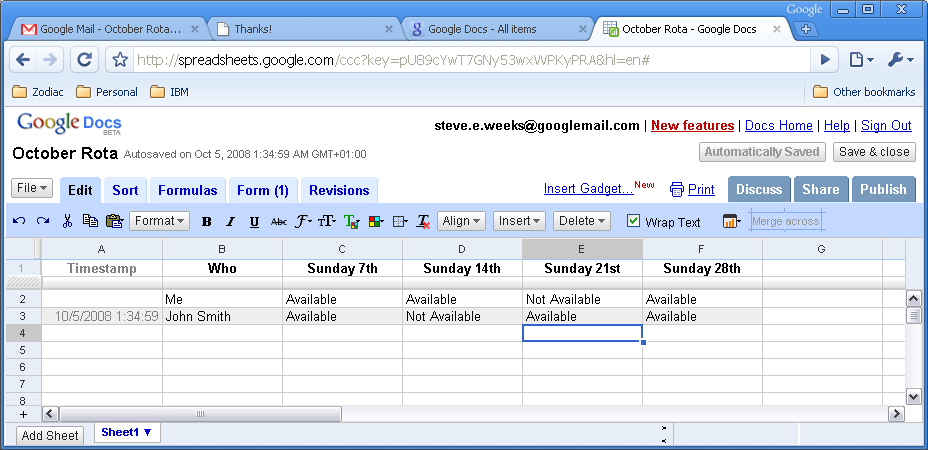
A timestamp column is added automatically, and now we can track when the responses were made. It is nice that Google does not spy on anyone. However the name field will have whatever has been typed in it, so you are depending on the users to actually enter their names. For each person who responds you will get a row. This saves you the task of collating the responses from emails!
P.S. Since this was written, there is a new option at www.doodle.com which we covered in this post. Doodle – a great app to find a time to meet.
 My Favourite Guitars and a Recommendation for a Great New Buy Today from Fender
  How to get maximum exposure for your song writing
  8 ideas to encourage more participation in worship
  Streaming your worship services legally | Everything you need to know
  Streaming online church services: the tech, the tips and the stories from around the world
  What do you most struggle with as a worship musician?
  Worship Leader Training: Beginning and Ending Songs Well
  Learn how to play by ear
  4 tips for making good use of your mic

